Create Energy Balance Subsequent Cases
After the first case, Sigmafine uses the previous Case time to create the next analysis case.
Note: The Energy Balance analysis requires that the previous Case end time be the start time of the next case. This is because inventory information collected from the previous case (opening levels, for example) does not result in a valid calculation unless the start\end times are the same.
To create subsequent cases:
Open System Explorer.
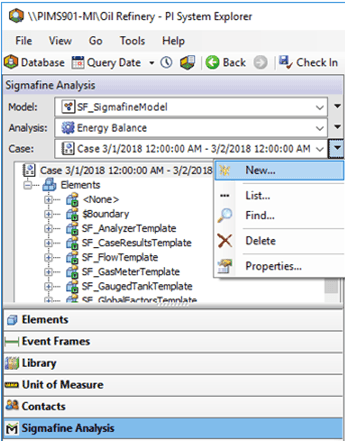
Select the Model analysis for which you are creating a case.
Click on the Case menu button and select New.
The Case Runner displays in the System Explorer window.

Use the Case Runner to run the Collect Elements, Collect Transfers and Collect Inputssteps.
Collect Elements - Establishes the elements to include in a case, based on their inclusion in any of the active layers of the case / display.
Collect Transfers - Locates any transfers to include in a case, based on the transfers' time and whether it is connected to any elements in the case.
Collect Inputs - Collect all inputs for the analysis to use in running the case.
Run - Execute the selected General Gross Error Analysis rules on the collected inputs. Results are stored within the Case and are displayed on the Log Output tab. Notable Gross Errors also appear on the Log Output tab.
Publish - Writes results for Attributes defined as output attributes.
If you examine the Case properties, note the previous Case as the initial Case described in Create an Energy Balance Initialization Case.
 EXAMPLE: Previous Case showing the first Initialization Case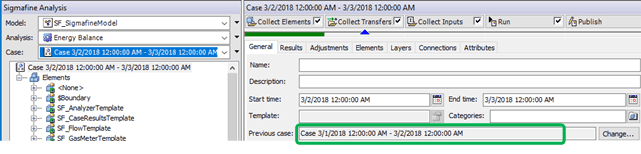
Use the Case Runner to run all analysis steps or choose to run each step separately and view log and results tabs to see the results each step of the analysis.
- Click the buttons in the Case Runner (shown above) to execute the analysis.
- If the Case Runner is not visible in the window, select View > Case Runner from the menu.
- If the checkboxes are not visible, right-click on Case Runner and select Configure to customize the buttons.
- To view the log and results tabs so you can see the results each step of the analysis:
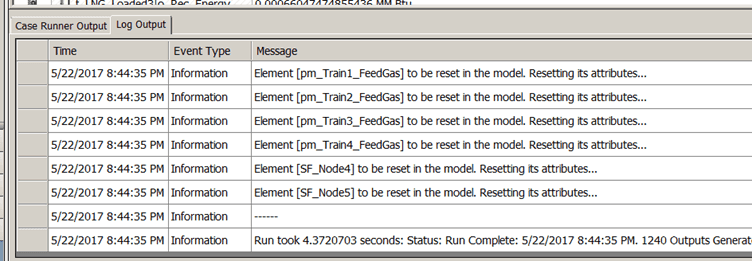
- Click on the Log Output tab (as shown in the following figure), to view any errors or messages from the analysis and Gross error analysis checks (if enabled).
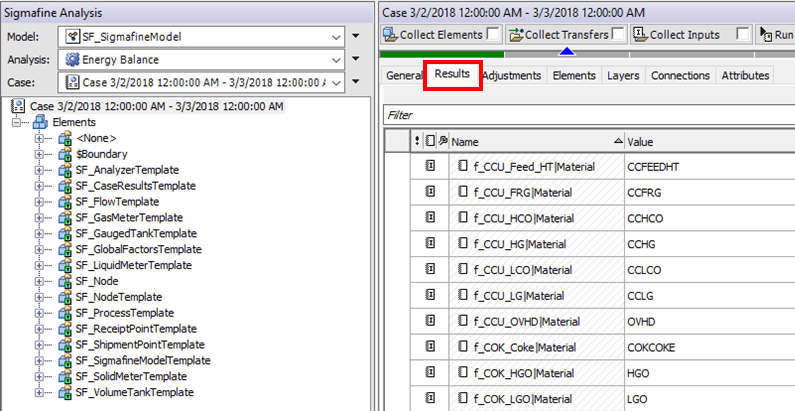
- Click on the Results tab (as shown in the following figure), to examine the results of the Energy Balance analysis.